
Quick answer
The most reliable control list is the one shown in the current game build. Open Settings / Controls / Key Bindings instead of copying prompts from an older video or screenshot.
Check movement and camera first, then jump or sprint, interaction, whistle/signals, painting and menus. Contextual HUD prompts help identify actions that are only available in a specific situation.
Verify current keybinds
Check the bindings shown by the current build before memorizing a fixed list.
- Open the title or pause menu. Find Settings, Options, Controls or Key Bindings.
- Review action names one by one. Prioritize movement, camera, jump, sprint, interaction, whistle, painting and menu actions.
- Fix conflicts. Check warnings when one input is assigned to more than one action.
- Test before joining a public room. Confirm movement, camera, signals and painting in a low-pressure area.
Basic actions
Understanding what each action does remains useful even after rebinding.
| Action | Purpose | What to check |
|---|---|---|
| Movement and camera | Navigate the stage and inspect hiding areas. | Adjust sensitivity and inverted look first. |
| Jump and sprint | Handle height changes, reposition or escape. | Learn timing instead of repeatedly pressing the input. |
| Interact | Use contextual objects or situation-specific actions. | It may work only when a HUD prompt appears. |
| Whistle or signal | Communicate a cue or position. | Follow room rules and avoid spamming. |
| Painting actions | Match color and texture to the background. | Check silhouette, shadow and patterns as well as color. |
| Menu and score | Review settings and match information. | Learn how to close the menu before the round starts. |
Practice before a match
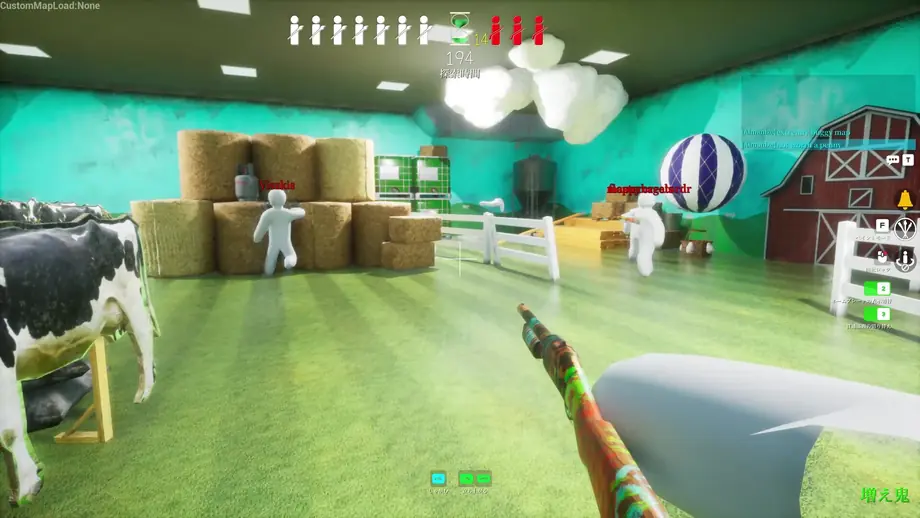
Practice stable camera movement before trying to move quickly. Walk along a wall, turn corners, inspect height changes and react to HUD prompts in that order.
Seekers miss visual clues when they swing the camera too quickly. Hiders make worse paint decisions when they move and edit color at the same time.
- Change sensitivity in small steps.
- Do not hold movement while changing menu settings.
- Test whistle and interaction only when the HUD and room rules allow them.
Painting controls
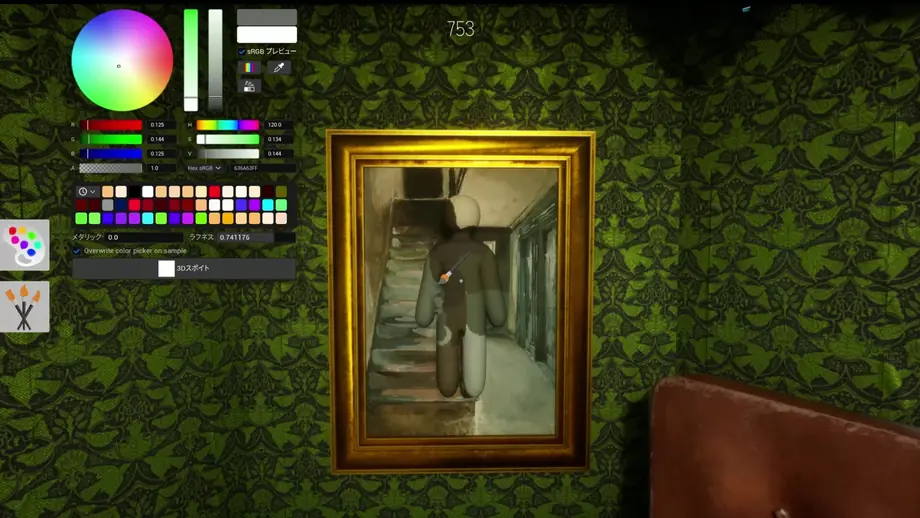
Painting involves more than selecting one color. Compare hue, brightness, saturation, texture, silhouette and shadow, removing the largest mismatch before fine tuning.
Because prompts can change, compare the on-screen icons with your current bindings. Use the hiding guide for practical camouflage decisions.
Controller checks
Steam's public app data did not expose an explicit controller_support value when checked on July 13, 2026. Do not assume full controller support; verify the latest Steam store badges and in-game controls.
If you use a controller, check Steam Input, button prompts, stick sensitivity, deadzone and conflicts with keyboard input.
- Review the controller settings in the Steam library.
- Confirm whether prompts switch between keyboard and controller.
- If no input is detected, connect the device before restarting the game.
Troubleshooting
| Problem | Possible cause | Fix |
|---|---|---|
| A key does not respond | Rebinding, input conflict or a contextual action. | Recheck Controls and test when the HUD prompt is visible. |
| Camera is too fast or slow | Sensitivity, mouse DPI or duplicate Steam Input settings. | Return one setting at a time to default, then adjust gradually. |
| Whistle or signal does not work | Changed binding, round state or room rules. | Check the binding and valid situation; avoid spamming. |
| Controller prompts do not appear | Connected after launch, Steam Input or unverified support scope. | Reconnect before launch and check both Steam and game settings. |
| New bindings are confusing | Too many actions changed at once. | Reset defaults and rebind one category at a time. |
FAQ
Official sources
Control bindings and input support can change, so prioritize these first-party pages.
- Official Steam store: MECCHA CHAMELEON — Check platform, updates and store feature badges.
- Steam Community Hub — Check official announcements and public discussions.