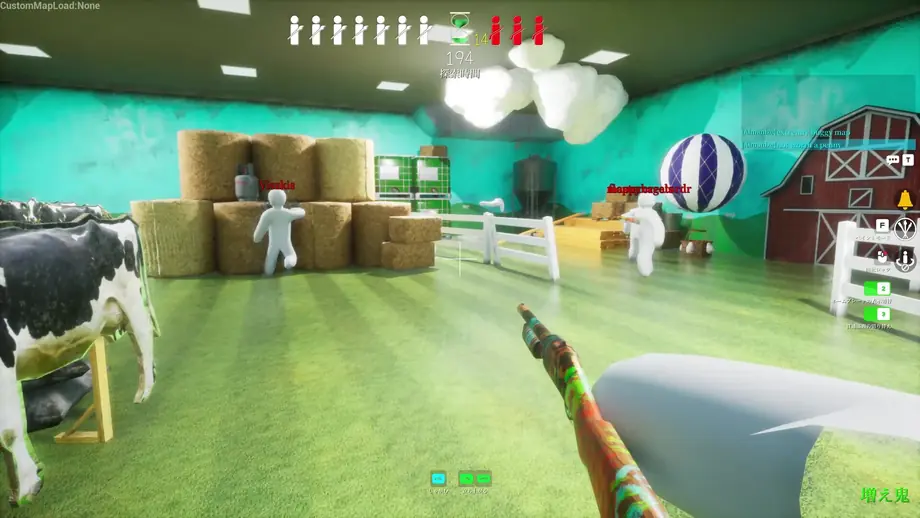
Summary: Essential Settings for MECCHA CHAMELEON
Settings in MECCHA CHAMELEON directly impact round outcomes, player visibility, and frame rate stability. Three primary settings demand immediate attention: display brightness (gamma calibration), shadow rendering quality, and in-game voice chat (VC) communication mode.
For hiding players, shadow intensity and texture sharpness determine whether your chameleon blends seamlessly into wall crevices or casts an obvious, revealing silhouette. For seekers, balanced ambient brightness prevents overlooked hiding spots in shaded corners without washing out subtle color differences.
In multiplayer sessions with friends or stream communities, custom lobby rules (round duration, whistle cooldowns, and map pool restrictions) set the tone of each match. Tailoring these settings guarantees balanced competition rather than one-sided sweeps.
Use a short calibration loop before a serious match: load the same stage, check a dark corner, move the camera, and listen for a whistle or footstep. Treat MECCHA CHAMELEON settings as a repeatable checklist rather than a one-time fix. After changing MECCHA CHAMELEON settings, play one low-stakes round and record whether the image is readable, frame pacing is stable, audio cues remain distinct, and voice chat is clear. Revisit one option at a time so you can tell which change helped. If the result varies between players, compare monitor brightness, headset volume, and refresh rate before changing more game options; hardware differences can make the same setting feel very different.
If you experience stuttering or find your camouflage constantly spotted, set Shadow Quality to Medium or High, keep Render Scale at 100%, and adjust in-game Brightness so dark stage corners remain legible without overexposing highlights. Use Push-to-Talk for voice chat to avoid leaking stealth cues.
Optimal Graphics, Brightness & Shadow Settings
Recommended visual settings engineered to balance responsive input latency, high frame rates, and camouflage fidelity:
| Setting | Recommended Value | Gameplay & Visibility Impact | Optimization Notes |
|---|---|---|---|
| Brightness | Default to Moderate (50% - 60%) | High (Dark area clarity) | Excessive brightness bleaches colors, making precise surface color replication difficult. |
| Shadow Quality | Medium or High | Critical (Camouflage blending) | Disabling shadows makes your chameleon float unnaturally against shaded backdrops. |
| Texture Quality | High (matches VRAM capacity) | Medium (Surface pattern clarity) | Sharp textures enable precise imitation of wood grain, tiles, and brick patterns. |
| Resolution | Native Display (e.g. 1920x1080) | High (Pixel sharpness) | Sub-native scaling blurs outline edges, betraying player contours. |
| V-Sync | Off (use frame limiters) | Low to Medium (Input responsiveness) | Keeps mouse input latency minimal while painting intricate camouflage patterns. |
| Max Frame Rate | Monitor Refresh Rate (60/144 FPS) | Medium (Prevents GPU thermal spikes) | Capping frame rates maintains consistent frame pacing during chaotic multi-player rounds. |
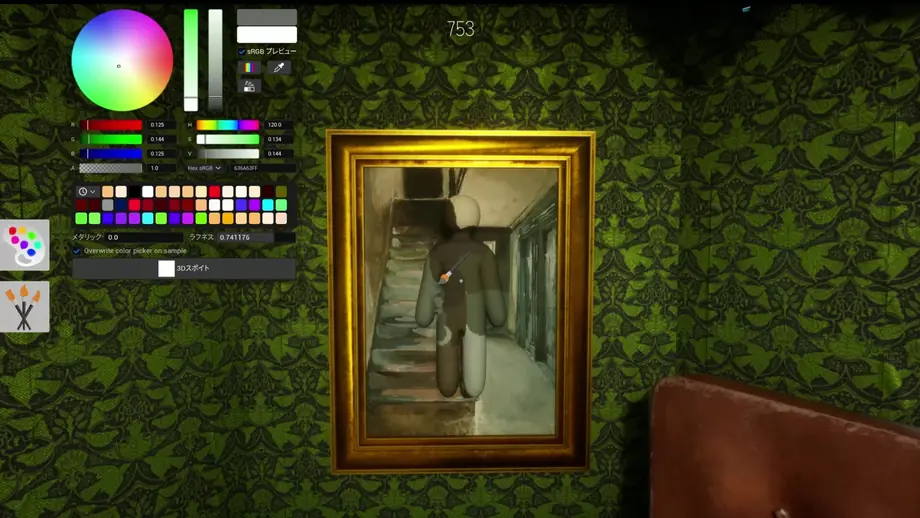

Audio Balancing & Voice Chat (VC) Configuration
Acoustic signals such as whistles, footsteps, spray sounds, and panting drive seeker tracking. Balanced audio settings provide a decisive sensory edge:
Lower background music to 30%-40% while maintaining sound effects at 80%-100%. This amplifies subtle environmental cues, landing thuds, and compulsory whistles.
Avoid open microphones during stealth phases. Keyboard chatter or background breathing will instantly alert nearby seekers to your hiding sector.
Enable stereo or spatial headphone processing in Windows audio properties to accurately pinpoint the directional origin of seeker footsteps.
Custom Multiplayer Lobby Match Rules
Lobby hosts can modify game parameters to suit competitive scrims, casual party play, or viewer participation streams:
| Rule Parameter | Standard Match | Casual Party | Hardcore / Stream Scrim |
|---|---|---|---|
| Round Duration | 3 to 4 Minutes | 5 Minutes (Relaxed exploration) | 2.5 Minutes (High-intensity rush) |
| Whistle Interval | 30 to 45 Seconds | 60 Seconds (Beginner friendly) | 20 Seconds (Constant pressure) |
| Paint Opportunities | Unlimited | Unlimited (Great for practice) | Single pre-round paint phase |
| Seeker Movement Speed | Default (100%) | 90% (Gives hiders an edge) | 105% (Rewards rapid sweeps) |
| Spectator Comms | Open | Cheering allowed | Strict radio silence upon capture |
Controller & Sensitivity Configuration
While mouse and keyboard offer fine precision, gamepads remain fully viable when configured correctly:
Exploration requires quick turns, but detailed painting demands subtle micro-adjustments. Consider toggling mouse DPI or setting a balanced in-game look sensitivity.
If stick drift disrupts stealth positioning, widen analog stick inner deadzones via Steam Controller Settings and enable Steam Input.
Ensure sprint, jump, whistle, and paint-mode activation are assigned to easily accessible buttons without conflicting inputs.
Troubleshooting Unsaved Settings and Performance Drops
| Observed Issue | Probable Cause | Resolution Step |
|---|---|---|
| Settings reset after closing the game | Config file permissions or cloud synchronization conflict. | Run Steam as administrator and check that local config files in AppData are not marked Read-Only. |
| Severe frame stuttering when moving camera | Excessive shadow resolution or unconstrained frame rates. | Lower Shadow Quality to Medium and cap maximum FPS to match your display refresh rate. |
| Voice chat microphone not broadcasting | Windows audio default device mismatch. | Verify that your desired headset microphone is designated as the 'Default Communication Device' in Windows Sound Settings. |
| Custom lobby rules fail to take effect | Changes submitted after match launch. | Host must apply all custom rule modifications in the pre-game lobby before all participants click Ready. |