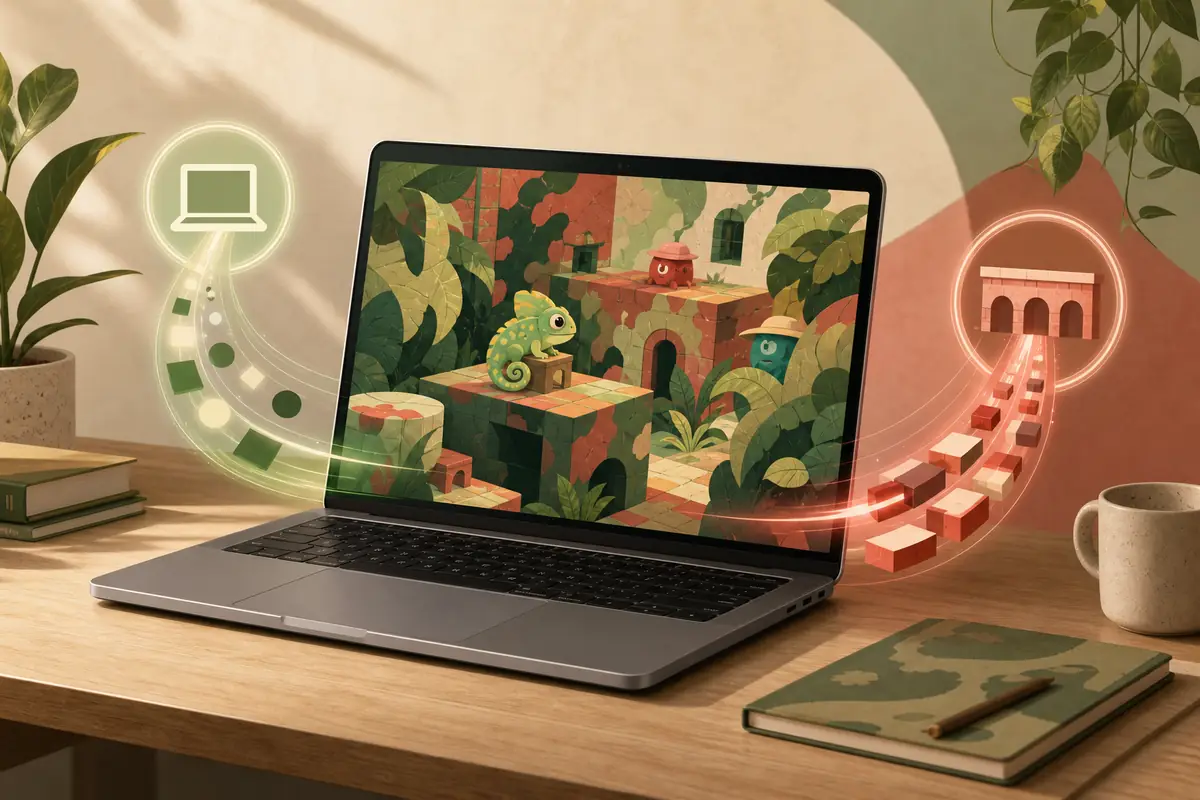
Short answer: native Mac support is not verified
As checked on August 1, 2026, the official MECCHA CHAMELEON Steam listing shows Windows 10 64-bit in its system requirements. It does not show a native macOS requirement or a Mac download option, so this guide cannot call the game officially supported on Mac.
That does not automatically mean every Mac setup will fail. Intel Macs may have a Windows route, while Apple silicon Macs may be able to test compatibility layers or a Windows virtual machine. Those are workarounds with their own performance, controller, networking, and anti-cheat risks; they are not the same as a native port.
If your goal is simply to join a friend quickly, a supported Windows PC with Steam Remote Play or another remote-desktop route may be less frustrating than buying the game before you know whether your Mac path works. Check the official store page again before spending money because platform support can change.
CrossOver, Wine, virtual Windows, Boot Camp, and streaming can behave differently after macOS, Steam, driver, or game updates. This page records test paths, not a guaranteed Mac build or a verified performance result.
What the official Steam page actually tells you
The platform decision should start with the first-party listing, not with a search snippet or a random compatibility comment. Use the table below to separate verified facts from assumptions.
| Question | Official signal | What it means |
|---|---|---|
| Is there a native macOS build? | No macOS system requirement is listed on the checked Steam page. | Native Mac support is not verified. Do not label the game as a Mac release. |
| What operating system is listed? | Windows 10 64-bit is shown in the official requirements. | The supported baseline is a Windows PC unless the developer publishes a new platform update. |
| Can a compatibility layer count as support? | The store page does not certify CrossOver, Wine, or a virtual machine. | Treat those methods as user-tested experiments and check the exact Mac hardware. |
| Where should price and updates be checked? | The official Steam app page and Steam news are the changing sources. | Use Steam for the current price, files, platform notes, and release updates. |

Practical ways Mac owners can try the game
Choose a route only after deciding whether you need native performance, the lowest setup risk, or a quick way to join friends. Multiplayer games are sensitive to input delay and network stability, so a method that launches is not automatically comfortable for a full round.
Keep the official Steam page as the purchase and installation source. Avoid cracked installers, unofficial repacks, or download pages that promise a special Mac version without a first-party announcement.
1. Intel Mac with Boot Camp
On a compatible Intel Mac, installing Windows through Apple's supported Boot Camp path can provide a more direct Windows environment. Confirm the exact Mac model, storage space, drivers, and Windows license requirements first; Boot Camp is not available in the same way on Apple silicon Macs.
2. CrossOver or Wine-style testing
Compatibility layers may run some Windows games without a full Windows desktop. Results can vary with graphics translation, Steam login, controller input, online services, and each game update. Treat a successful launch as an early test, not proof of stable multiplayer.
3. Windows virtual machine
A virtual machine can be useful for Apple silicon users who already have a supported Windows ARM setup, but graphics performance, memory allocation, controller passthrough, and network behavior need testing. Keep expectations below a native build.
4. Stream from a supported Windows PC
If you already have a Windows gaming PC, Steam Remote Play or another trusted remote route can keep the game running on Windows while the Mac acts as the display and input device. Test latency and controller mapping before a timed round.
Apple silicon and Intel Mac checks are different
First identify the chip in About This Mac. Intel and Apple silicon do not have the same Windows options, and advice written for an Intel Mac should not be copied directly to an M-series Mac. The model year, available memory, macOS version, and free storage also affect the practical result.
For Apple silicon, pay special attention to whether the method supports the game’s graphics path and controller. For Intel, Boot Camp may offer a more direct Windows route, but it still requires storage, drivers, and a valid Windows installation. In either case, test a solo launch, then a short online session, then a friend lobby.
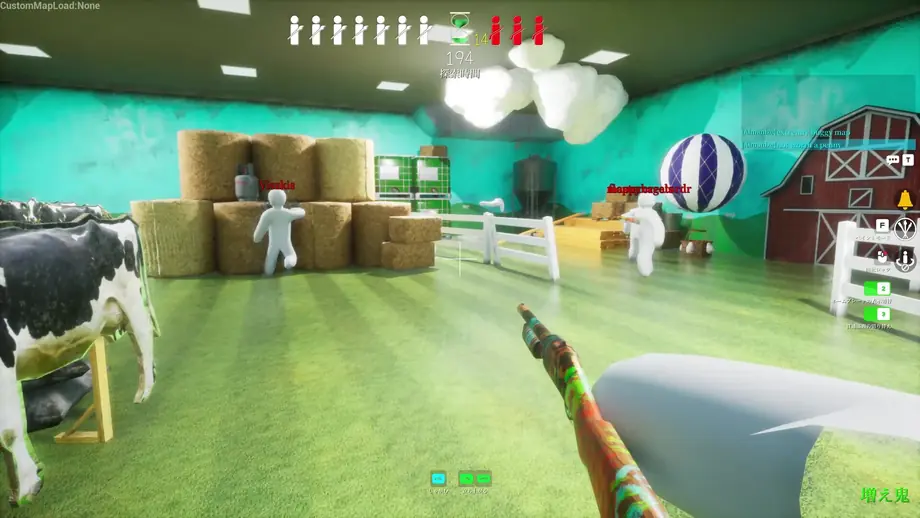
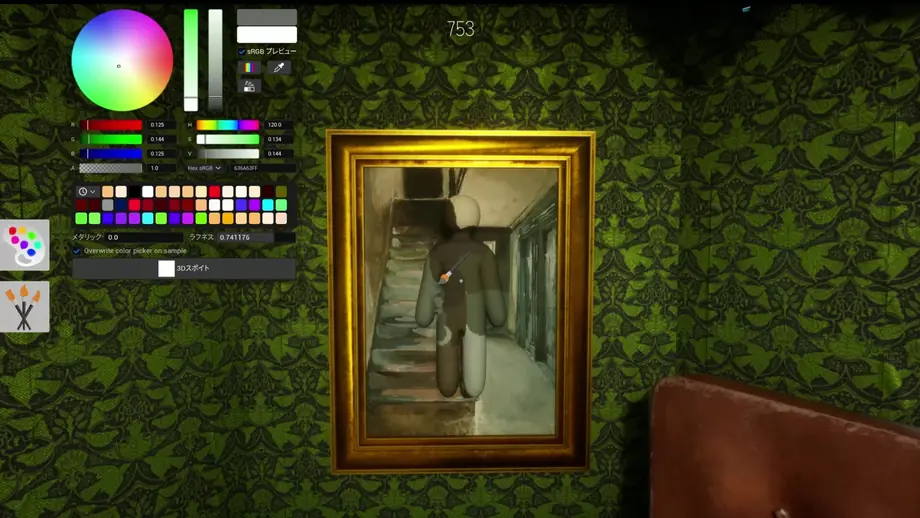
MECCHA CHAMELEON relies on spotting color differences, outlines, shadows, and movement. If a compatibility method introduces blurry scaling, unstable frame pacing, input delay, or a washed-out display, it can undermine the actual gameplay even when the game technically runs.
Mac compatibility checklist before you buy
Use this sequence to avoid paying first and discovering a platform mismatch later.
If the game launches but feels wrong
Separate platform, graphics, input, and network symptoms before changing several settings at once.
Black screen or crash
Test the official Windows path or a clean compatibility profile, then check whether the tool supports the Mac chip and game runtime.
Blurry colors
Check scaling, resolution, HDR, and display settings. If colors or silhouettes are hard to read, the workaround is not gameplay-ready.
Controller not detected
Reconnect the controller, review Steam Input mapping, and test the same device in a supported Windows session.
Online delay
Compare local play with a short friend session and isolate Wi-Fi, remote streaming, VPN, and virtual-machine network overhead.
FAQ
MECCHA CHAMELEON on Mac questions
Official and technical sources
Platform support is time-sensitive. These links separate the game’s first-party listing from documentation for possible Mac-side methods.