
Quick answer: playing and creating are different tasks
MECCHA CHAMELEON custom maps are easy to play after publication: open Steam Workshop, subscribe, wait for Steam to sync, and choose the map in a lobby. Creating one is a full Unreal workflow. Open the Mod Kit in Unreal Engine 5.6.1, make a content-only plugin, add a level, package game and mod separately, then upload the required files with SteamCMD.
This page gives creators one practical sequence from a new project to a tested Workshop item. Prepare a Steam account that owns the game, the matching Unreal version, the Mod Kit, and SteamCMD before editing. Keep the plugin name and packaging settings stable so later builds point to the intended content.
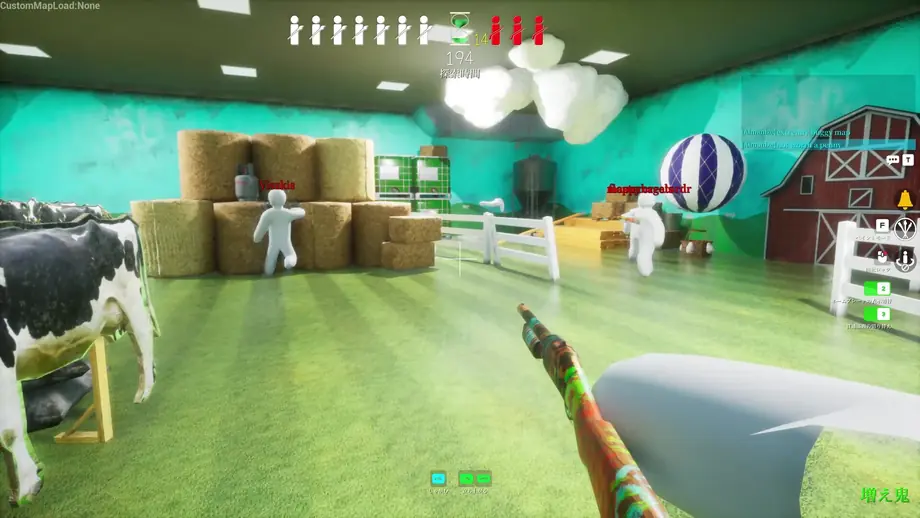
A map is not finished because its buildings look good. Hiders need readable colors and poses, seekers need large visual contradictions, and everyone needs safe spawns and a camera that does not clip through walls. A private lobby with both roles is better than publishing an untested level.
Open the Mod Kit, create a content-only plugin, put a level in Maps, package FullGame and your mod, upload with SteamCMD, then test in a private lobby with real players.
What you need before building a map
Custom map creation is not a one-click beginner feature. Collect these inputs before building so no missing tool appears late.
Unreal Engine 5.6.1
Use the version targeted by the Mod Kit. Opening the project in another release can turn a packaging or plugin issue into a compatibility investigation.
Write down the exact engine version firstMECCHA CHAMELEON Mod Kit
Use the project or plugin from the developers. Prefer the official Steam page or a developer-linked community for downloads and instructions.
Do not run an unknown mirror executableSteamCMD and a Steam account
SteamCMD publishes the package. Log in with an account that owns the game and keep the upload folder separate from other projects.
Never put credentials in a VDF or guideA private test lobby
Use a controlled place to check spawns, collision, lighting, paintable surfaces, and camera angles. Test both roles.
Keep solo and multiplayer notes separateCreate the content-only plugin and level
The safest structure keeps your map in its own plugin instead of editing the base game. Choose one unique plugin name and reuse it exactly in the packaging profile later.
Open the Mod Kit in the matching version
Launch the project and wait for the plugin list and Content Browser to load. If the plugin folders are missing, open the Content Browser gear menu and enable Show Plugin Content.
Add a content-only plugin
Choose Edit, Plugins, Add, and Content Only Plugin. Give it a unique name and record the spelling, including capitalization, because the same name is entered in the DLC packaging field.
Create a level inside Maps
Make a Maps folder inside your plugin and save the new level there. A Basic level is a useful starting grid; build outward from the spawn area so the first walk test is easy.
Check World Partition and Streaming
In World Settings, use World Partition and disable Enable Streaming. Save, reload, and clear warnings before you begin the packaging pass.
Test the camera and spawn first
Place floors and walls around the player start and walk the area. Use the CameraBlockWall collision profile on solid walls so the camera cannot pass through a surface that only looks solid.
Package FullGame and your mod
Open Legacy Project Launcher from Platforms and create two profiles: FullGame and one for your plugin. Keep Cook, Package, and Deploy aligned. Do not change project settings between builds because a small difference can point the mod package at the wrong content.
Launch FullGame first. Then launch the mod profile and enter the exact content-only plugin name in Name of the DLC to Build. Without it, the base game may package while the Workshop folder has no usable custom content.
| Setting | Check | Why it matters |
|---|---|---|
| Cook | By the Book, Windows, release version 1.0 | Both profiles target the same distribution platform and release settings |
| Package | Enable public distribution and I/O Store | Create a distributable container format for loading |
| Deploy | Do not deploy | Keep the package as a local Workshop upload output |
| FullGame | Run without a DLC plugin name first | Create the game baseline the mod depends on |
| MyMod | Enter the plugin name in the DLC field | Export your content as the Workshop mod |
Publish the map with SteamCMD
Create one upload folder from the mod output. Copy the generated .pak, .ucas, and .utoc files into it, then copy AssetRegistry.bin from the Cooked folder. Add a thumbnail named Preview.png; it is the image people see in the Workshop listing, so use a frame that represents the actual map.
Copy the Sample.vdf file from the Mod Kit and edit the upload folder, Preview.png path, title, and description. Keep the appid unchanged and leave publishedfileid empty for a new item. Log in to SteamCMD, run workshop_build_item with the VDF path, and wait for the item to appear on the Workshop page.
- The .pak, .ucas, and .utoc files are together
- AssetRegistry.bin came from the Cooked output
- Preview.png has the expected name and path
- The VDF title, description, and folder are correct
- The appid is unchanged and a new published ID is blank
- The published item opens on the Workshop page
Subscribe to and play a custom map
Playing somebody else's map does not require the creator toolchain. From the main menu, open Maps, choose an item in the official Steam Workshop, and click Subscribe. Wait for the download, then restart the game or Steam if it is not visible.
Test a new map on a private server first. Make sure players use the same game version and read the description for dependencies or host requirements.
Open the Workshop
Use Maps in the main menu and confirm that the page is the official MECCHA CHAMELEON Workshop for app 4704690.
Read the item page
Check the creator, description, comments, dependencies, and recent update date. Do not follow a third-party download page simply because it uses the game name.
Subscribe and wait for sync
Click Subscribe and let Steam finish. If the map is missing, restart the game, then unsubscribe and resubscribe only if the item page does not report a wider problem.
Run a short lobby test
Select the map and play a short round as Hider and Seeker. Check spawns, floors, cover, paintable surfaces, and camera sightlines.
Playtest and improve before release
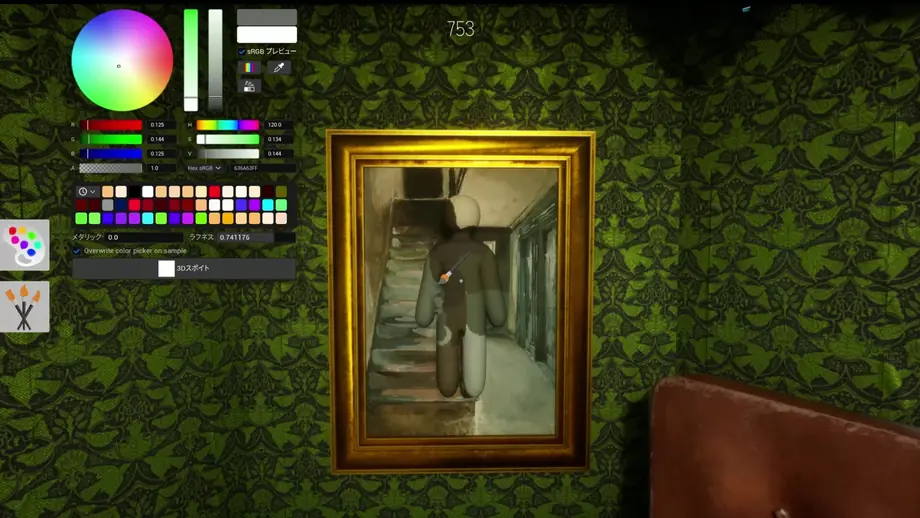
A good custom map is more than a collection of attractive buildings. Give Hiders backgrounds whose colors and shapes can be read, while giving Seekers large contradictions they can discover before the timer expires. Mix open and shadowed spaces; a map that is only bright or only dark usually favors one role too strongly.
Record what each role sees. Check whether the spawn is safe, whether the camera passes through a wall, whether an intended surface cannot be painted, and whether a player can fall into or reach an unintended area. After a fix, run the same game version again and update the Workshop description and Preview.png if the map changed visibly.
- Hiders can try at least three different background types
- Seekers have readable large-scale clues
- Players can leave the initial spawn safely
- Walls, floors, and stairs do not cause camera clipping
- There are no unintended falls, shortcuts, or unreachable zones
- A private multiplayer round followed the solo check
- The Workshop description and update note match the current build
Version and official-source boundary
This guide uses the recorded version 3.3.2 from July 30, 2026 and the official Workshop entry checked on October 23, 2026. The Mod Kit, Unreal Engine integration, and game package rules can change. Treat old videos and fixed key lists as references, not guarantees for a new build.
This site does not distribute installers, mod binaries, or unofficial game files. Get the game, the creator tools, and SteamCMD from official or developer-linked sources. After an update, reopen the Workshop item and retest it in a private lobby before inviting a public group.
- Check the current game version on Steam
- Confirm the Unreal Engine version expected by the Mod Kit
- Use the official Workshop for app 4704690
- Retest published maps privately after an update
MECCHA CHAMELEON custom maps FAQ
What do I need to make a custom map?
You need Unreal Engine 5.6.1, the MECCHA CHAMELEON Mod Kit, a Steam account that owns the game, SteamCMD, and a private lobby for testing.
Where do I play a custom map?
Open Maps in the game menu, subscribe to an item on the official Steam Workshop, wait for Steam to sync it, and choose it from the lobby map list.
Why use a content-only plugin?
It keeps your content separate from the base game, which makes packaging, updates, and troubleshooting easier to manage.
Do I need both FullGame and MyMod profiles?
Build FullGame first, then the mod profile with the plugin name in the DLC field. Confirm current developer instructions if the Mod Kit changes.
What should I do when SteamCMD upload fails?
Check .pak, .ucas, .utoc, AssetRegistry.bin, and Preview.png in one folder, then verify VDF path and appid. Review the log before reinstalling.
How should I test before publishing?
Run a private round as Hider and Seeker, checking spawns, paintable surfaces, silhouette, shadows, routes, camera clipping, and unreachable areas. Repeat with several players.
Is this the same as the official maps guide?
No. The official maps guide covers play strategy on existing stages. This page covers creator tools, packaging, Workshop publishing, and creator playtesting.
Official and reference sources
- MECCHA CHAMELEON Steam Workshop — Official Workshop entry for app 4704690; use it for subscribing and checking the published item.
- MECCHA CHAMELEON on Steam — Official store and community entry point for the game and developer announcements.
- All Things: Custom Maps workflow — Reference for the Mod Kit, World Partition, packaging, and SteamCMD sequence.
- TheGamer: Make and Play Custom Maps — Independent second reference for plugin, packaging, Workshop upload, and play steps.
- Valve Developer Community: SteamCMD — Official Valve documentation for SteamCMD installation and commands.
Continue with these guides
MECCHA CHAMELEON Maps Guide
Review the 10 official maps and strategy.
Mods and Workshop Safety Guide
Separate Workshop content from cheats or unknown executables.
Hiding Guide
Use color, shadow, and movement in tests.
Settings Guide
Keep brightness, audio, and input consistent.