Meccha Chameleon crash fix: use the safe order first
A Meccha Chameleon crash fix is easier when you first name the moment of crash. Does the Steam launch button close immediately, does a logo appear and disappear, does a black window stay open, or does Meccha Chameleon crash only while loading a stage? These are different signals, even when the player calls all of them a crash.
Close Steam completely and restart Windows. Let downloads, cloud sync, and scheduled updates finish before launching again. Repeatedly pressing Play can make an old file state look like a new fault. Note whether the library launch works after restart.
The next safe step is Steam's official Verify integrity of game files action. Steam checks whether the installed files are correct without asking you to download an unknown repair package. Steam also notes that a small number of files can fail verification because they are local configuration files, so the result must be read together with the next launch attempt.
If the crash continues, compare the official Steam requirements with your Windows and graphics setup. Test one change at a time: disable an overlay, update a graphics driver from its official source, or try a standard display mode. Avoid unofficial DLLs and random launch options because they hide the cause.
Change one thing, test once, and record the result. Prefer Steam's update and file verification before deleting files or downloading unofficial replacements.
Meccha Chameleon crash fix: the first five minutes
Run these short checks in order. Stop when Meccha Chameleon is stable; later steps are optional after a clear fix.
Restart the computer
Close Meccha Chameleon and Steam, exit the Steam tray icon, and restart Windows. This clears a temporary process or memory state.
Wait for Steam to finish
Open the library and wait for downloads, scheduled updates, and cloud sync to finish before pressing Play again.
Test Steam itself
Open another small game or browse the library. If Steam is slow or other games fail, treat this as a client or system issue first.
Save the visible symptom
Note an error code, black screen, missing sound, logo exit, or stage-load failure. A screenshot is useful when the message disappears.
Try one normal launch
Use the regular Steam library button. Do not add compatibility mode or administrator flags before you have a baseline.
Move to the next check
If the same symptom remains, verify the files, compare requirements, and then test overlays one by one.
Match the symptom to the first useful check
The timing of a Meccha Chameleon crash fix matters. This table suggests where to start; it does not claim a single cause for every PC.
| Symptom | What you see | First action |
|---|---|---|
| Closes after pressing Play | A black window or logo appears for a moment. | Restart Steam, finish updates, then verify the files. |
| Stays on a black screen | Audio may continue while the window stops responding. | Wait briefly, close it once, and test a standard display mode. |
| Crashes during play | It repeats in a stage load, busy scene, or after more players join. | Record the exact trigger and disable one recorder or overlay. |
| Started after an update | The previous session worked and the Steam update came first. | Confirm the update is complete, verify files, and read official news. |
| Steam is unstable too | The library, login, or another game is slow or failing. | Restart Steam and check the Steam support or service status path. |
| Windows restarts | The whole PC reboots or shows a blue screen. | Check temperature, power, drivers, and Windows events before changing game settings. |
Verify the Steam game files
Steam Support recommends file verification when Meccha Chameleon is missing content or crashing during play. For a Meccha Chameleon crash fix, this is the standard crash fix that does not require a third-party download.
The check can take several minutes. Do not verify several games at once or run another disk-heavy task. If a few files fail, Steam says local configuration files can be involved; compare the result with the next launch.
Verification cannot fix every Windows or driver problem. Record the time, the message, and whether Meccha Chameleon reaches the menu afterward, then continue to the environment checks if the same crash returns.
Open the library entry
In Steam, right-click MECCHA CHAMELEON in your library, or open its library page and select the gear icon.
Open Installed Files
Choose Properties and then the Installed Files section. The label can vary slightly with the Steam interface language.
Start verification
Select Verify integrity of game files and wait for Steam to finish. Do not close Steam during the process.
Compare a normal launch
Press the normal launch button once and record whether the menu opens, the same stage fails, or nothing changes.
Steam Support: Verify Integrity of Game Files The official steps and verification warning are documented here.
Meccha Chameleon: check Windows, graphics, and background software
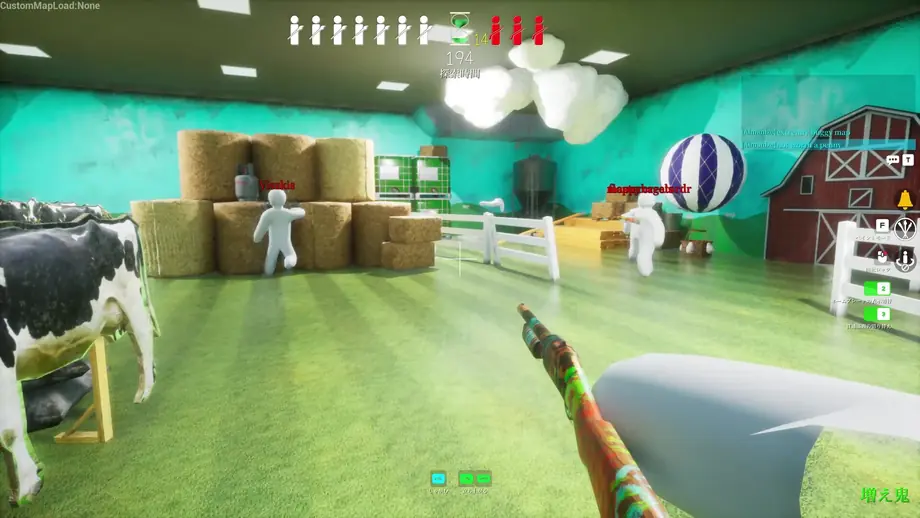
The official Steam listing states Windows 10 64-bit, an Intel Core i5 processor, and a DirectX 11 or 12 compatible graphics card as minimum information. Meeting a minimum does not guarantee every combination of driver and background software, so keep the test controlled.
Windows update state
Complete a pending restart or system update after saving your work. If the crash began immediately after an update, record that date instead of guessing.
Graphics driver
Check the current driver through the GPU maker's official app or site. Avoid driver download pages with an unknown publisher.
Overlays and recording
Disable Steam, GPU, chat, or capture overlays one at a time and repeat the same launch path. Turning off everything at once removes useful evidence.
Security notifications
Look for a quarantine or block notice. If you add an exclusion, limit it to the known game folder and never approve an unknown DLL.
Display mode
For a black screen or load failure, try a standard windowed or native display mode and write down the original value so it can be restored.
Free disk space
Leave enough space for updates and temporary files. Clean up large files before retrying an update if the drive is nearly full.
A minimum requirement is a reference point, not a promise for every driver, Windows build, overlay, or temperature. Record CPU, GPU, Windows build, and the reproduction point.
Meccha Chameleon crash fix: prepare a report if it still fails
Before reinstalling, turn the symptom into a timeline. A launch-button exit, logo crash, stage-load failure, and crash after minutes lead an investigator to different areas.
Include Windows, CPU, GPU, launch time, any earlier update, error, verification result, and the overlay or recorder stopped. Never send a Steam password or private account data.
When you contact Steam Support, describe what happened and what you tested without claiming an unverified file is the cause. A condition that did not reproduce is still useful evidence.
- Time and number of failed launches
- Whether it fails at launch, logo, loading, or play
- Windows version plus CPU and GPU
- Verification time and result
- Overlays, recorders, and security notices tested
Give it a short title
Use “exits after the logo” or “crashes during stage load” so the reproduction point is clear.
Write three reproduction lines
Open Steam, press Play, and describe the exact closing screen in repeatable order.
Keep a change log
Record driver, display, or overlay changes with date and value.
A small crash-fix routine to reduce repeat crashes
Once Meccha Chameleon launches, do not immediately restore every recording and graphics option. Play a short practice round first, then return one setting at a time so a new crash has a clear trigger.
After an update, wait for Steam downloads, check official news, and use the launch route that worked before. Do not copy old launch options without checking them.
If Meccha Chameleon closes again, note the exact action and screen once instead of repeating it dozens of times. This keeps the next test clean and makes a support report more precise.
Confirm the update is complete
Check that Steam has no pending download or scheduled update for Meccha Chameleon.
Use a normal launch
Start without compatibility or administrator flags so the baseline remains clear.
Test a short path
Check the menu, settings, stage load, and a short round, recording the last stable point.
Restore one item at a time
Re-enable a recorder or overlay only after the same short test is stable.
Use first-party facts
Use Steam and the Meccha Chameleon display for requirements, updates, and platform claims instead of old reposts.
Meccha Chameleon crash fix FAQ
Official sources used for the checks
Use these first-party pages for changing requirements and file procedures.
- Official MECCHA CHAMELEON Steam page — Platform, minimum hardware, and public multiplayer information.
- Steam Support: Verify Integrity of Game Files — Official crash-related verification steps and warnings.
- Microsoft Support — Entry point for Windows updates and basic system checks.